Understanding File Structure
To understand how Qucs-S stores files, you must understand at a basic level how the simulation process works.
The schematic is the primary input to a simulation. It can reference external models (SPICE subcircuits, netlists, Verilog models, etc) if needed, or in simple cases it may only use models built-in to your selected circuit simulator.
When the Simulate button is clicked, the schematic data is fed into the simulator and produces a Dataset. Datasets are the raw data from a single run of a simulation in a given simulator.
Datasets are used to generate graphical diagrams, so you can interpret your results. Diagrams include Cartesian plots, Smith charts, polar plots, truth tables, etc. Diagrams are most commonly placed on the same schematic page as your circuit, although they can be placed on separate Data Display Pages if you desire.
The figure below describes this process, and the files it references.
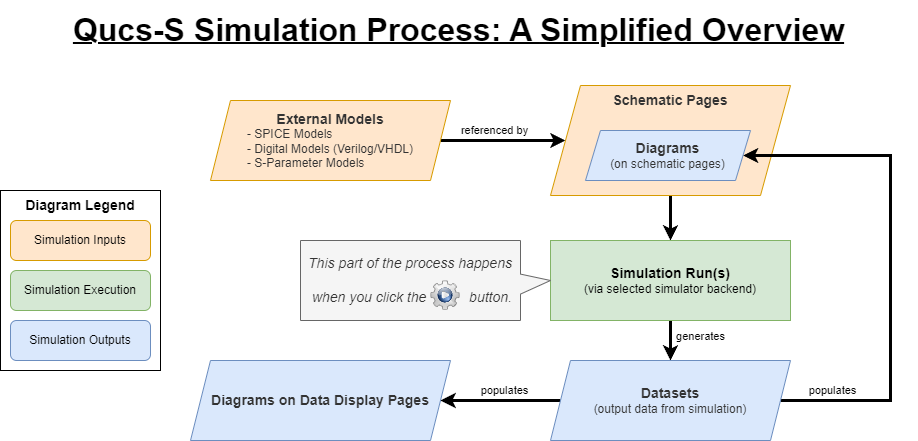
A simplified diagram of the Qucs-S simulation process, showing which files it takes as inputs, and which files are produced as outputs.
Projects
A Qucs-S Project is a folder in the Qucs-S Home Directory, containing multiple files related to Qucs-S simulations (such as schematics, datasets, SPICE models, etc).
To be considered a Project, the folder’s name MUST end in _prj. For example, myCircuit_prj is a valid Project folder name, while myCircuit is not.
Qucs-S Home Directory
The Qucs-S home directory will typically default to $HOME/QucsWorkspace. If an older installation of Qucs-S or original Qucs is found, it may default to $HOME/.qucs instead.
It can be set to an arbitrary location by visiting File > Application Settings > Locations > Qucs Home, as shown in the figure below.
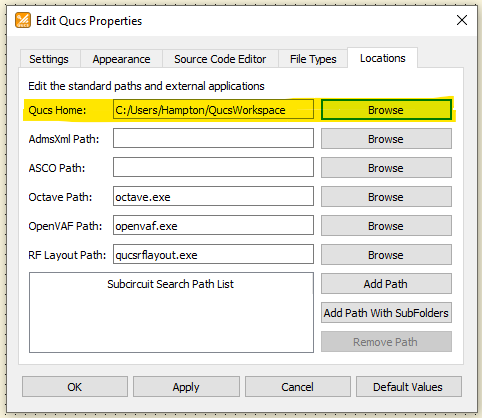
Where to change the Qucs-S home directory, in the File > Application Settings menu.
File Types in a Project
A Project may contain many different types of files, listed below:
Input Files:
Schematics (
.sch): These are the schematic pages within Qucs-S. One project may contain several schematics, and the schematics also support hierarchy (similar to the Hierarchical Sheets feature in KiCAD and other EDA software).SPICE (
.cir,.ckt, or.sp): External SPICE models. You may reference these in your Qucs-S schematic.Symbols (
.sym): Files created by Qucs-S when adding a Spice Library Device (a method of creating circuit symbols around imported SPICE models). These will reference SPICE files, the SPICE files are not embedded in the.symfile.Verilog and VHDL: Verilog or VHDL source files, used only for pure-digital simulations.
Verilog-A (
.va): Analog Verilog-A source files. Further documentation is needed for this feature.
Output Files:
Datasets (
.dat,.dat.ngspice, and.dat.xyce): Raw output data from a simulation run. Extension and format will vary depending on the simulation backend used.Data Displays (
.dpl): Pages used only for displaying Diagrams showing simulation results. These are not created automatically, since you can simply place Diagrams directly on your schematics. You may still use them if you prefer.
You can use the Contents tab in the Main Navigation Dock (see Interface Overview) to inspect all the files in your current open Qucs-S project. They will be displayed in groups based on the file types described above. An example of how this may look is shown below.
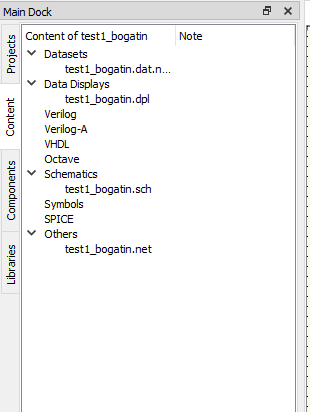
An example of the Contents tab, showing the files in the currently-opened project, grouped into their types.
The example above corresponds to the following structure on the filesystem:
Qucs-S Home Directory ($HOME/.qucs in this case):
test1_bogatin_prj: The Project foldertest1_bogatin.dat.ngspice: Raw Dataset output from an ngspice run.test1_bogatin.dpl: Data Display page.test1_bogatin.net: Netlist file used by ngspice.test1_bogatin.sch: Schematic page defining the simulation.
Working Outside a Project
It is possible to work outside a Project folder, storing files outside the Qucs-S home directory. You can open any type of Qucs-S supported file (schematic, data display, symbol, etc) using the Open button in the top right of the main window.
However, this may make files difficult to find on your system, since Qucs-S will place the simulation datasets (and any other additional files) next to your Schematic (.sch) files on the filesystem.
If you’d like to open a .sch file and save it into a Project for continued work, simply open it with the Open command, then use the Save As button to save a copy in your Project folder. You can then open your Project and continue your work.
Warning
If you open a .sch file in a directory where you do not have write access, you will not be able to display any simulation results! When you attempt to run a simulation, Qucs-S will be unable to save the simulation Dataset in the same directory as the Schematic, and therefore unable to render any Diagrams or otherwise display the output of the simulation.
This usually applies to the built-in example schematics! (accessible via File > Examples) These files are stored in the Qucs-S program folder, which is not writeable by normal users on most operating systems. To use these files, you’ll need to open them and perform a File > Save As into a folder where you have write access.