Simulating in Tuning Mode
Sometimes, you may wish to get an intuitive sense of a circuit’s behavior by varying one component’s value and seeing results in real-time, rather than performing a litany of Sweeps or another more traditional circuit simulation method. That is what Qucs-S Tuning Mode is for!
Tuning mode allows you to vary the value of a component property using sliders, and see updated simulation results instantly. This is particularly useful if you are trying to gauge the effects of a filtering component, tune the length of a transmission line, or some other intuitive, optimization-related task.
Using Tuning Mode
To use Tuning Mode:
Ensure your schematic is set up with at least one Simulation Component (DC, Transient, AC, etc). Tuning Mode does not run any of its own simulation logic, it simply calls the Simulation Components already on your schematic page when you vary the tuned parameter.
Click the “Tuning Mode” button in the simulation toolbar. It’s immediately to the right of the Simulation Backend Selection dropdown and the Run Simulation button.
Select properties in your schematic to tune. You can select as many properties as you like. You can also define the range/scale of the tuning sliders.
Adjust the slider(s), and watch your simulation results recompute in (near) real-time. Note that Tuning Mode will recompute every Simulation Component on your schematic page. If you are experiencing performance issues, try deleting or deactivating some of the Simulation Components to reduce the compute time.
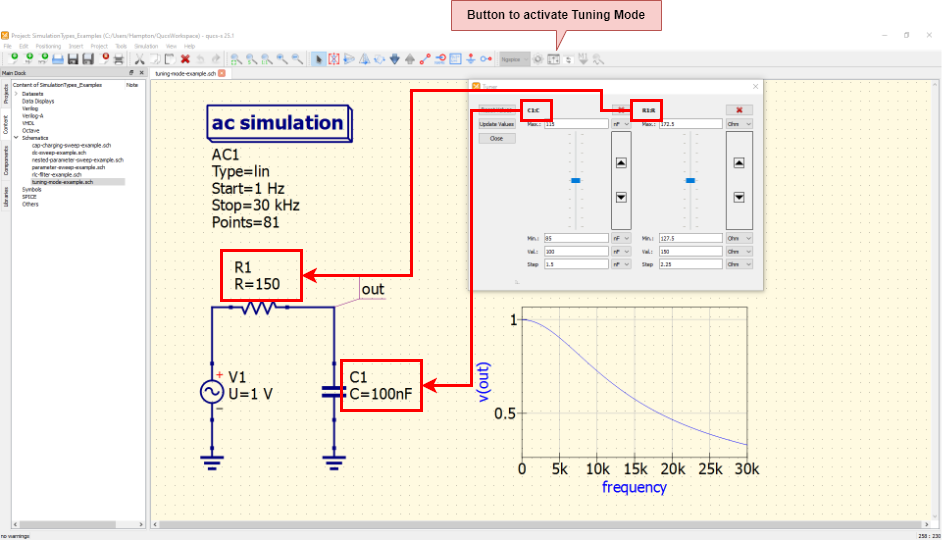
Example of how to use Tuning Mode. In this case, a simple RC filter is being tuned.