Using Libraries
Once you have a Library (.lib file), you can do one of two things with it:
Set it up as a User Library, which is available across all QUCS-S projects opened on your PC.
User Libraries will NOT travel with your QUCS-S projects when transferred from one computer to another.
This is what QUCS-S does with new Libraries by default.
Set it up as a Project Library, which is stored within another QUCS-S Project.
Project Libraries are “portable”. They travel anywhere your Project goes, including to another PC.
Setting up a User Library
If you are creating a brand new Library manually, it will be configured as a User Library by default.
If you are importing a pre-existing Library (for example, if a peer has sent you a .lib file that you want to use), simply copy the file into $HOME/QucsWorkspace/user_lib/ and restart QUCS-S for the changes to take effect.
Setting up a Project Library
Project Libraries have the advantage of being “portable” with the rest of your QUCS-S Project, unlike User Libraries. This is because Project Libraries are stored in a QUCS-S Project folder, and therefore travel alongside the rest of the Project (in contrast to a User Library which is stored at the system level).
To configure a Library as a Project Library, simply paste the .lib file into the Project folder. You may need to close and re-open the Project in QUCS-S for the Library to be recognized.
To access a Project library, first open the Project it’s stored in (via the Projects tab). Then, navigate to the Libraries tab. Any Project Libraries should be listed in the “Project Libraries” section of the Libraries tab, as shown in the figure below.
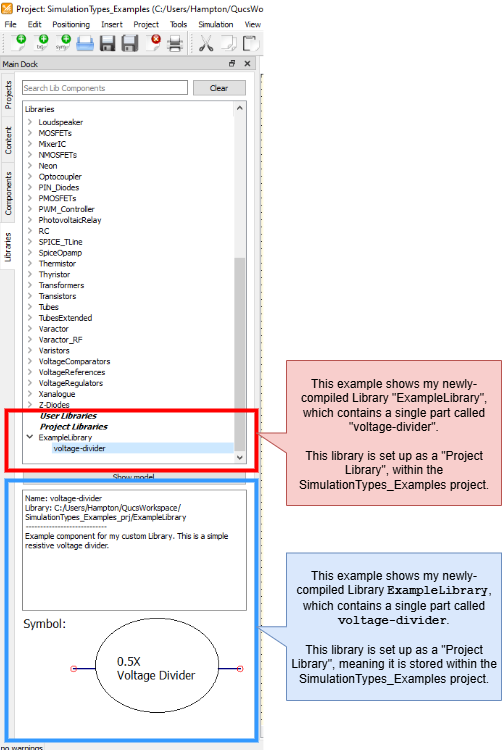
Example of what a Library configured as a Project Library would look like. This example shows a library ExampleLibrary containing a single part, voltage-divider. It is stored within the SimulationTypes_Examples project.