Creating Libraries Manually
Preparing the Source Project
To create a Library, you must first create an empty Project. You can do this with Project > New Project in the menu at the top of the main QUCS-S window. Name the project whatever you like, it does not matter.
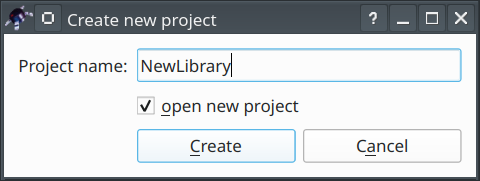
An example of the dialog for creating a new Project in QUCS-S.
Once you have an empty Project, you need to import a Schematic file (.sch), configured for use as a Subcircuit, for each component you want to include in your Library. There are two methods to do this:
If you have not already created any
.schfiles for this Library, create them as you would in any normal project. Follow the documentation on Subcircuits if you are unsure how to do this.If you already have
.schfiles prepared for your parts, you can include them in your project by simply copying the files into your project’s folder on your filesystem.This will be something like
$HOME/QucsWorkspace/MyNewProject_prj, where$HOMEis your operating system home directory, andMyNewProjectis the name you assigned when you created your project.If you choose this approach, you will need to force QUCS-S to “refresh” the Project after you copy the files into it. The easiest way to do this is to close the project (Project > Close), then re-open it by double-clicking on
MyNewProject_prjin the Projects Tab at the left side of the window.
The figure below shows an example of what a Project might look like when it is properly prepared to be “compiled” into a Library.
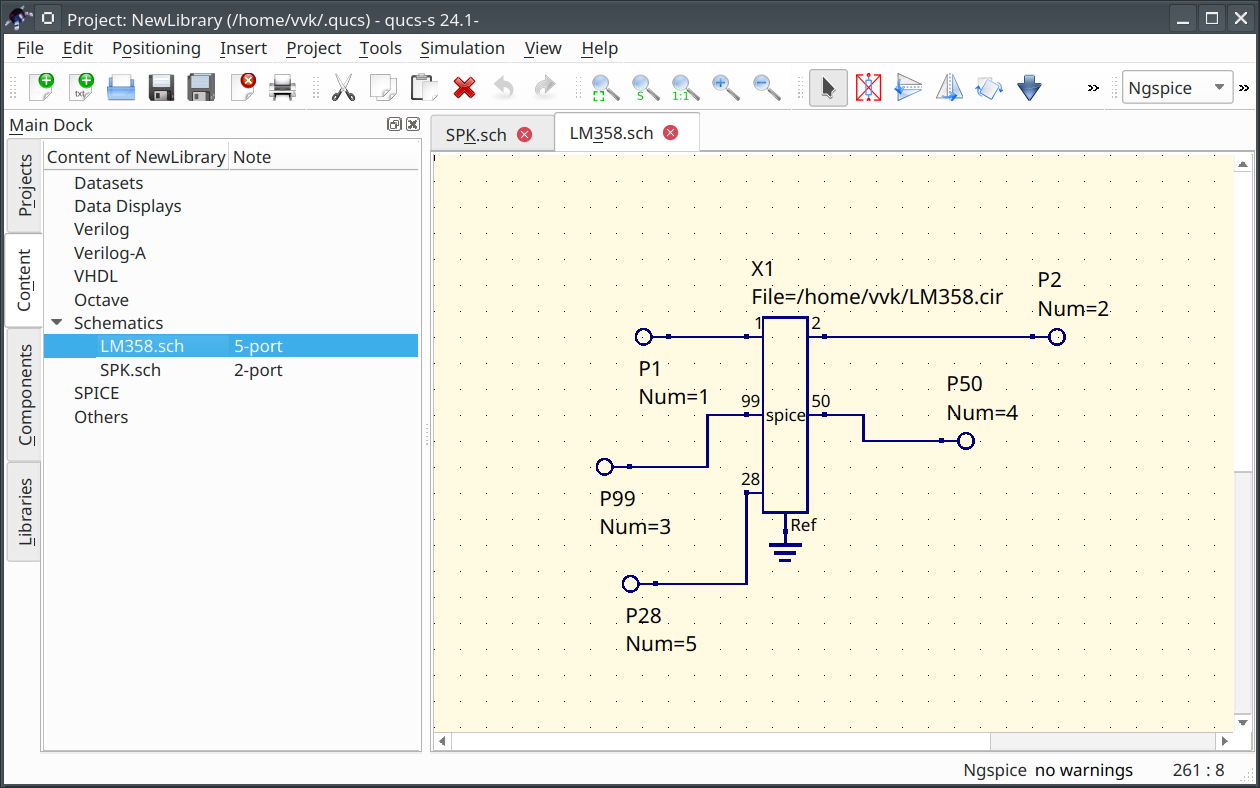
An example of a Project that is ready to be “compiled” into a Library. In this example, the resulting Library would contain two parts, LM358.sch and SPK.sch (not necessarily under these names - names can be configured during the Library creation process).
Compiling a Library from a Project
Once your Project is prepared with all the parts you wish to include (as their own .sch files), navigate to Project > Create Library. This will open the Library Creation dialog (shown in the figure below), which allows you to name your Library, and choose which .sch files from your Project should be included in the compiled Library file.
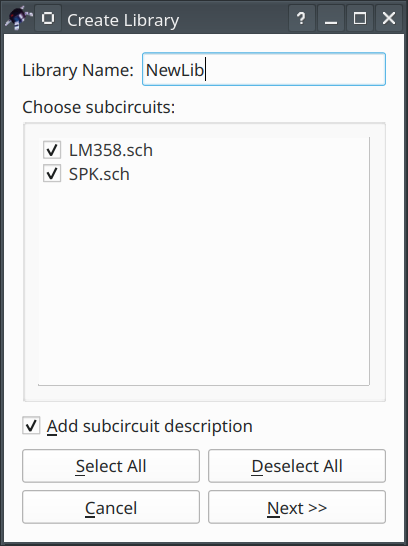
The first dialog in the Library compilation process, which prompts you to select the .sch files for inclusion in the Library, and give the Library a name.
After clicking “Next”, you will be given the opportunity to assign a description to each component (.sch file) in the library. These can be relatively long descriptions. They will be visible in the bottom left of the QUCS-S window whenever a component is selected for insertion into your schematic (see the figure below for an example).
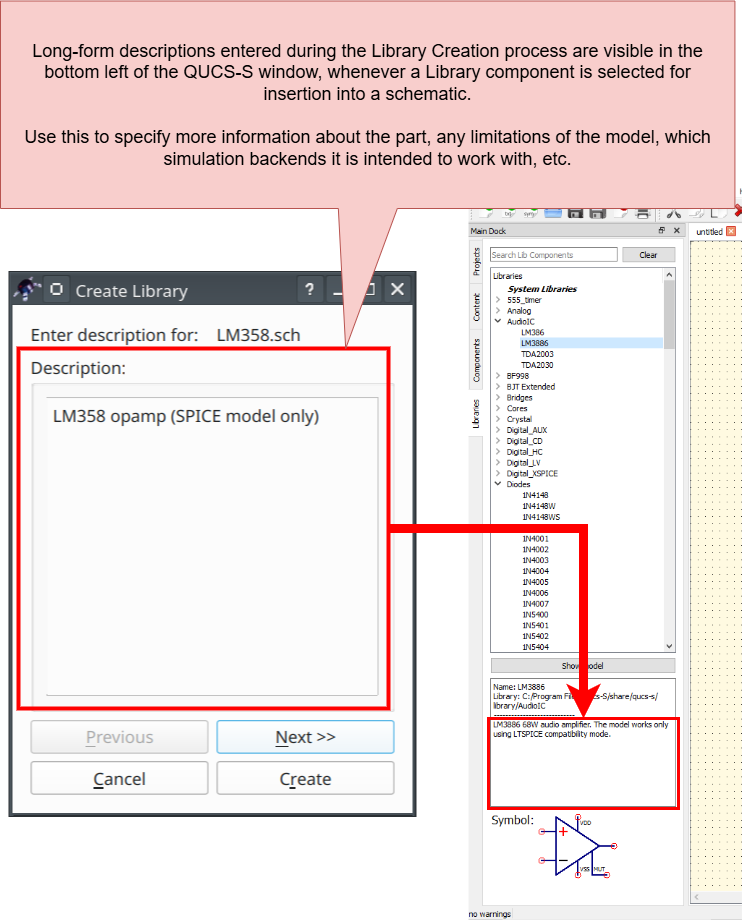
Annotated screenshots showing where you can specify a long text description of each Library component, and where these descriptions are available once your Library has been created.
After you specify a description for every Component being included in your Library, the actual “compilation” process will begin. Relevant logs and errors from this process are shown in the pop-up window (as shown in the figure below).
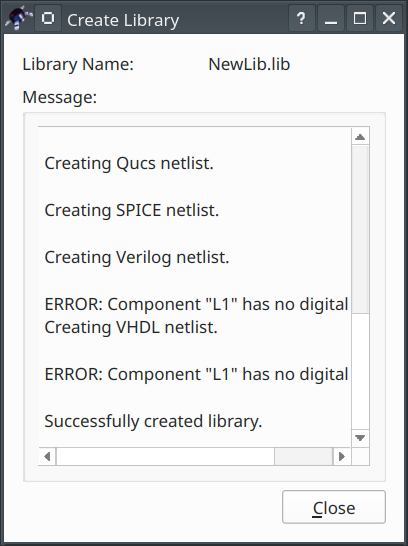
Example of the logs from the “compilation” of a new Library. The “no digital model” errors can be disregarded since, in this example, we are creating models for analog components.
Tip
If you see errors like ERROR: Component "Example" has no digital model, you can usually disregard them. This is just QUCS-S warning you that no VHDL or Verilog model for your components. If you are creating a Library of analog components, such a model is obviously not required.
After the compilation process completes, your new Library should be usable from the “User Libraries” section of the Libraries Tab in the main window, as shown in the figure below.
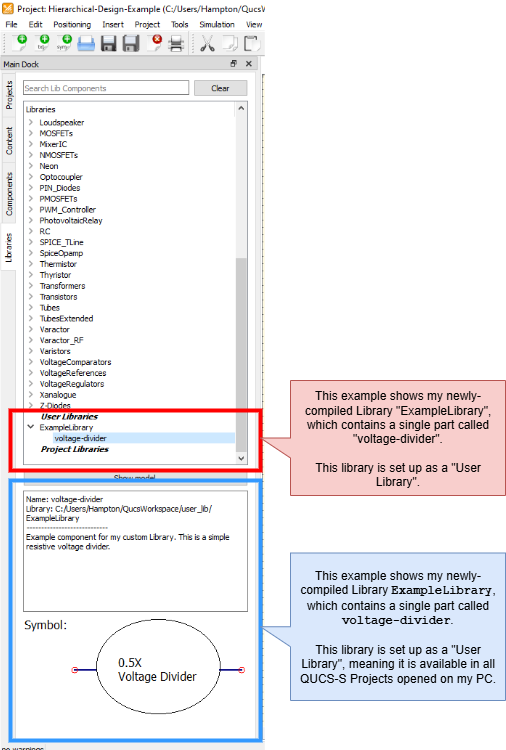
Example of what a successfully-created Library would look like. This example shows a library ExampleLibrary containing a single part, voltage-divider. The Library has been set up as a User Library, which means it’s available in all QUCS-S projects opened on this PC. See the next section for more information on this.
Warning
Remember that Library “compilation” is a one-way operation! If you ever need to make edits to your Library’s components, you will need the original source project files, so be sure to keep them in a safe place. The .lib file cannot be directly edited.
See Introduction to Libraries for more information.